RAM Upgrades for Desktops and Laptops in Magnolia & The Woodlands
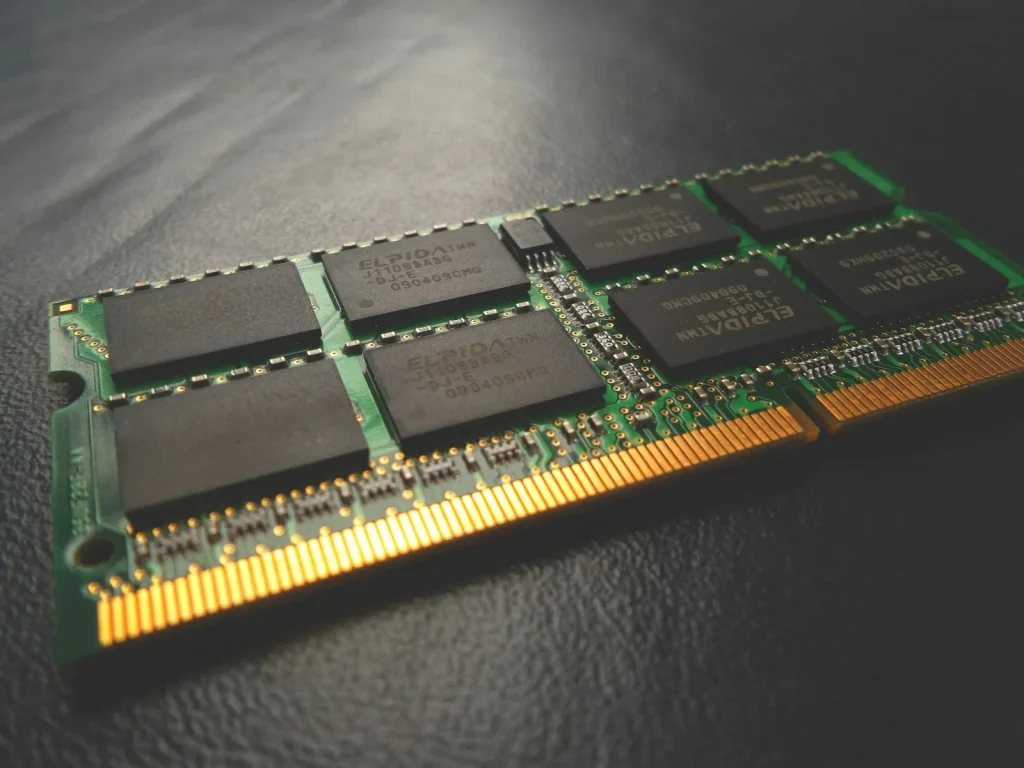
RAM, or memory, is your computer’s workspace. It holds the programs and browser tabs you have open right now. When it fills up, Windows starts shuffling things to the drive and everything slows to a crawl. If your computer is fine with one program open but freezes with a dozen browser tabs, it’s probably short on memory. Call (346) 291-7330 and I’ll tell you what yours can take.
How much memory you need
- 8GB: the minimum for Windows 11. Fine for email, browsing, and documents, one or two things at a time.
- 16GB: comfortable for most people, including lots of browser tabs, photo editing, and light gaming.
- 32GB or more: for gaming, video editing, and other heavy software.
A computer with 4GB will feel slow on Windows 11 no matter what else you do to it.
The types of RAM
Memory has gone through several generations, and each one is shaped a little differently, so it only fits a computer built for it.
- DDR2: computers from roughly the mid-2000s
- DDR3: most machines from about 2008 to 2015
- DDR4: most computers from about 2015 to 2021, and still very common
- DDR5: the current generation, found in newer desktops and laptops
They aren’t interchangeable. The notch on each generation sits in a different spot, so a DDR4 stick won’t go into a DDR3 slot, or the other way around. Many thin laptops also use LPDDR, a low-power version built right onto the board.
Where the RAM is installed
Desktops use full-size memory sticks called DIMMs. They plug into slots on the motherboard, right next to the processor. Most desktops have two or four slots, and memory works best installed in matching pairs.
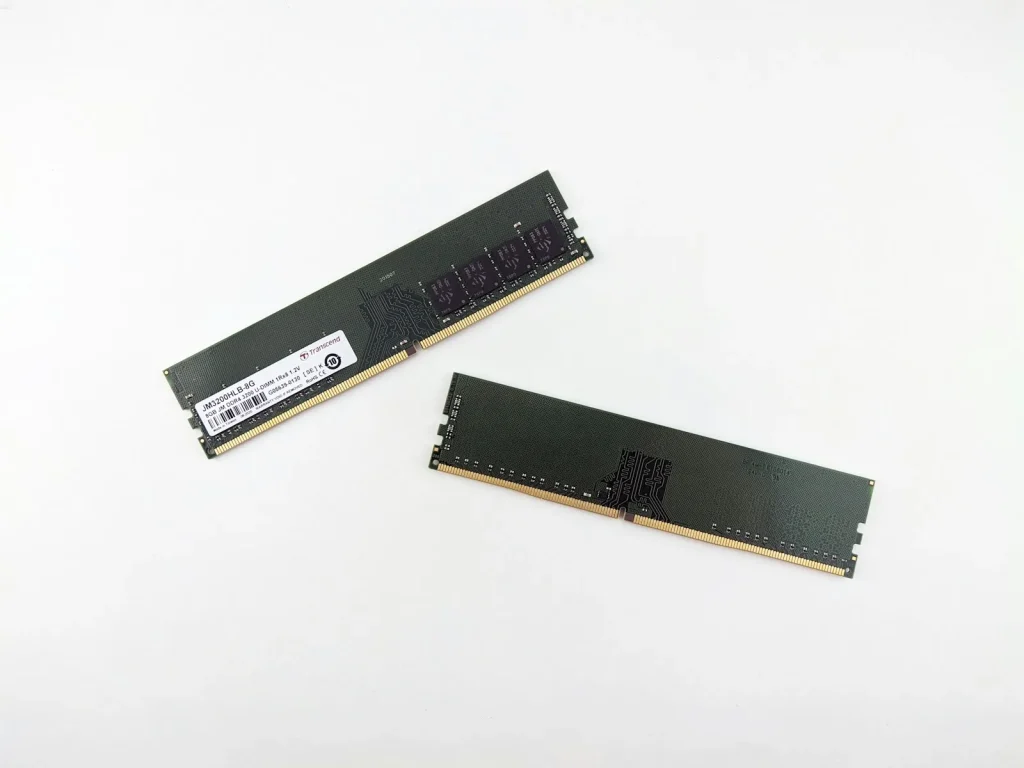
Laptops use shorter sticks called SO-DIMMs. They’re usually under the bottom panel, sometimes behind a small access door, and on a few models under the keyboard. Many laptops have two slots; some have only one.
Some laptops have memory soldered to the board. That’s common in thin laptops, Chromebooks, and Macs with Apple’s M-series chips. Soldered memory can’t be upgraded, and some laptops have a mix of both: some soldered memory plus one open slot. I’ll check yours before you buy anything.
Check what you have
On Windows, press Ctrl+Shift+Esc to open Task Manager, click Performance, then Memory. You’ll see how much RAM you have, its speed, and how many slots are in use. If memory sits at 90% or higher while you work, more RAM will help.
On a Mac, open the Apple menu and choose About This Mac.
RAM or SSD?
If the computer is slow even with one program open and Task Manager shows the disk at 100%, the drive is the bottleneck, not the memory. See SSD upgrades. Sometimes the right answer is both, and I’ll tell you which.
How it works
A memory upgrade is one of the quicker jobs I do. Your files and programs aren’t touched, so you get the computer back exactly as you left it, just better at handling several things at once. You get a quote before any work starts.
Areas served
Magnolia, The Woodlands, Conroe, Montgomery, Spring, Tomball, Woodforest, Lake Windcrest, and Westwood.
Nearby but not listed? Give me a call.
Call (346) 291-7330 or send a message and I’ll get back to you within 24 hours.