Simple fixes for a faster, cooler PC
Most of the gaming PCs that land on my bench aren’t broken. They’re held back by something small: a dusty filter, an old driver, or a monitor running at half the speed it can handle. Here are the fixes I walk customers through most often, starting with the free ones.
Make sure your monitor is running at its real refresh rate
If you bought a 144Hz or 165Hz monitor, there’s a fair chance it’s running at 60Hz right now. Windows doesn’t always pick the highest setting on its own. Go to Settings > System > Display > Advanced display and open the refresh rate dropdown. Pick the highest number.
While you’re at it, check where your display cable plugs in. If it goes into the ports near the top of the PC’s back panel (on the motherboard), you’re not using your graphics card at all. The graphics card’s ports are lower down and run horizontally. I fix this one more often than you’d think, and it takes ten seconds.
Turn on your RAM’s rated speed
Memory runs at a cautious default speed out of the box, often well below the number on the packaging. To get the speed you paid for, go into your BIOS and enable the memory profile. Depending on your motherboard it’s called XMP, EXPO, or DOCP. It’s usually one setting. If your PC gets unstable afterward, switch it back off and let me take a look, because that usually means something isn’t playing well together.
Keep your graphics drivers up to date
New drivers often include fixes and performance improvements for recent games. NVIDIA cards update through the NVIDIA App, and AMD cards through AMD Software: Adrenalin Edition. If a game starts crashing right after an update, rolling back to the previous driver is a reasonable first step.
Clean out the dust (this is Texas, after all)
Summers around Magnolia and The Woodlands are hot and humid, and plenty of households have pets. Heat, dust, and fur together are how a gaming PC ends up throttling. When parts get too hot, they slow themselves down to stay safe, and your frame rate drops right along with them.
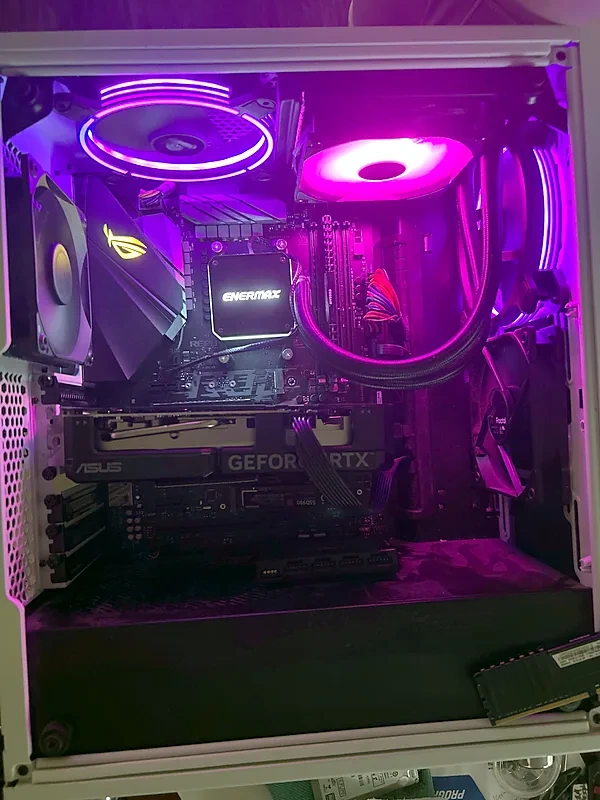
Every few months, shut the PC down, unplug it, and blow out the filters, fans, and heatsinks with compressed air. Hold each fan still with a finger while you do it so it doesn’t spin too fast. Keep the tower off the carpet and out of closed desk cabinets where hot air gets trapped.
If your PC is a few years old, the thermal paste between the processor and its cooler may have dried out. Replacing it is routine, but it means taking the cooler off. If that’s not something you want to tackle, I can handle it.
Keep an eye on temperatures
A free tool like HWiNFO shows how hot your processor and graphics card get. Check it while you’re actually playing, not while the PC sits idle. Safe limits vary by chip, so compare your readings to the manufacturer’s specs instead of a number you saw on a forum. Warning signs include fans that roar constantly, games that stutter after 20 minutes of smooth play, and sudden shutdowns.
Cut down what runs in the background
Game launchers, RGB lighting apps, cloud sync, and a browser full of tabs all compete for resources while you play. Open Task Manager, go to Startup apps, and disable anything you don’t need running the moment Windows starts. On Windows 11, also make sure Game Mode is on under Settings > Gaming > Game Mode.
Give your games room on a fast drive
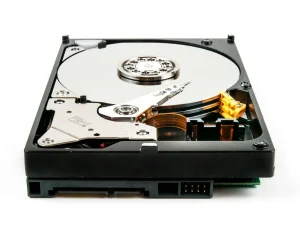
Modern games are huge, and a nearly full drive can slow things down. Install your games on a solid-state drive rather than an older hard drive. Load times drop noticeably. If your SSD keeps filling up, adding a second one is one of the cheapest upgrades there is.
Upgrade the part that’s actually holding you back
Before spending money, figure out where the bottleneck is. Open Task Manager during a game, or use an on-screen overlay.
If your graphics card sits near 100% while the processor has room to spare, the graphics card is the limit. If the processor is maxed out and the graphics card is loafing, it’s the other way around. And if memory usage is close to full, more RAM will help.
Compatibility matters too. A new graphics card might need a bigger power supply or might not physically fit your case. A newer processor might need a new motherboard. That’s exactly the conversation I like to have before anyone buys anything.
When it’s time to bring it in
Some problems aren’t DIY territory. Bring your PC to me if you’re seeing blue screens or random restarts, if it won’t boot at all, if you smell something burning, or if a fan or drive is making new noises. I also build custom gaming PCs from scratch, sized to the games you play and the budget you have.
1st Choice Computer Services is based in Magnolia and serves The Woodlands, Conroe, Montgomery, Spring, Tomball, Woodforest, Lake Windcrest, and Westwood. Nearby but not listed? Give me a call. Contact me to get your rig checked out, tuned up, or upgraded.
Talk it through with me first
If building your own custom computer sounds like a lot, it doesn’t have to be. I can walk you through the whole process, from picking the parts to assembling and setting up the finished machine. Gaming rig or a dependable work machine for your business, I’ll spec it around what you need and what you want to spend.