Laptop Screen Damage: Causes and Types
Laptop screen damage can come from all kinds of situations, and the type of damage you’re seeing usually points straight back to the cause. This guide walks through the most common causes of laptop screen damage and the specific type of damage each one tends to produce, so you know what you’re dealing with before deciding on next steps.
Causes of Laptop Screen Damage, and What Each One Looks Like
Physical Impact (Drops and Closed-Lid Pressure)
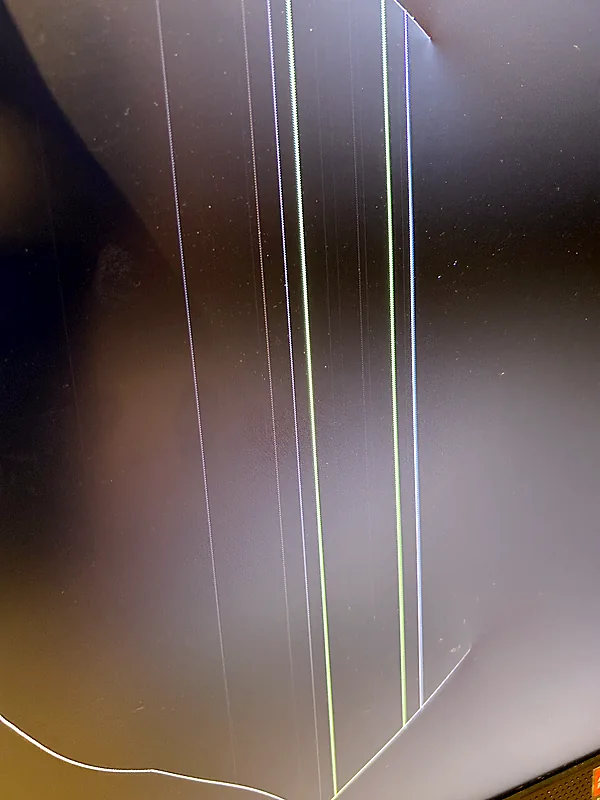
Drops, bumps, or closing the lid on an object like a pen are the most common cause of laptop screen damage. This type of impact typically produces cracks or spiderweb fractures radiating out from the point of impact, along with dead or discolored patches where the display panel itself was crushed.

Pressure Damage (Heavy Objects on a Closed Lid)
Stacking heavy items on top of a closed laptop puts even pressure across the whole screen rather than a single impact point. This tends to show up as pressure cracks or dark, bruise-like blotches across the display, sometimes without any visible damage to the outer case at all.
Liquid Spills
Spilled liquid can seep behind the display panel and cause discoloration, dark spots, or a complete blackout as it damages the panel or its connections (CNET). Liquid damage doesn’t always show up right away: symptoms can appear hours or even days after the spill as corrosion sets in.
Internal Malfunctions (Backlight or Connector Failures)
Not all screen damage comes from an outside force. A failing backlight or a loose display cable can cause flickering, dimming, or a screen that goes completely blank even though the laptop itself is powered on and running normally. This type of damage can look identical to a cracked screen from the outside, since there’s often no visible sign of physical damage at all.
Preventing Laptop Screen Damage
A few simple habits go a long way toward avoiding the causes above:
- Use a protective case: a padded bag protects your laptop during transport.
- Keep the lid area clear: check for pens, cables, or other objects before closing the lid.
- Avoid stacking items on top of a closed laptop.
- Keep drinks at a safe distance from your keyboard and screen.
- Clean the screen safely with a dry microfiber cloth rather than paper towels or household cleaners.
When to Get It Professionally Looked At
Because internal malfunctions can look exactly like physical damage from the outside, guessing at the cause can lead to paying for the wrong fix. If you’re seeing cracks, dead zones, flickering, or a blank screen, a professional diagnosis is the safest way to know what’s actually wrong before any money gets spent. I repair laptop screens in Magnolia, The Woodlands and the surrounding area. See laptop repair for everything else I fix, or call (346) 291-7330.
Laptop Screen Repair FAQ
My laptop turns on but the screen is black. Is the screen broken? Not always. A black screen can be the display panel, a loose or damaged display cable, a failed backlight, or a graphics problem. That’s why I diagnose before quoting: replacing a screen that isn’t actually broken wastes your money.
How much does a screen repair cost? It depends on your laptop’s brand, model, and the type of damage. You’ll get a firm quote after diagnosis, before any work starts, and the diagnostic fee is included in the final price if you go ahead.
Do you come to me, or do I bring the laptop in? Either. I offer onsite visits and drop-off service.
Is my data safe during a screen repair? Yes. A screen repair doesn’t involve your hard drive or files, and I don’t go looking through your data.
How long does it take? Mostly it depends on how quickly the right replacement panel for your model can be sourced. You’ll get a time estimate along with the quote.
References: CNET.