You press the power button and nothing happens. Or the lights come on and the screen stays black. Most of the time the cause is simple, and you can rule out the easy ones yourself in about ten minutes.
First, which kind of “won’t turn on” is it?
Three different problems get described the same way.
- No sign of life. No lights, no fan, no sound. That’s almost always power: the outlet, the cord, the charger, the power supply, or the battery.
- Lights and fans, but a black screen. The computer has power. The problem is the display, the cable to it, or the computer failing to start.
- It starts, then stops. The Windows logo shows and it restarts, or you get a blue screen or a repair loop. That’s usually Windows or the drive, not power.
If there’s no sign of life
- Check the outlet. Plug a lamp or a phone charger into the same outlet. If the computer is on a power strip or surge protector, plug it straight into the wall. Strips do wear out.
- Desktop: check the switch on the back. Most desktop power supplies have their own on/off switch next to the cord. It gets bumped when the computer is moved or cleaned.
- Laptop: check the charger. Most chargers or charging ports have a small light. No light with everything plugged in points at the charger, the cord, or the outlet. If you have another charger that fits and is made for laptops, try it.
- Do a hard reset. Unplug the power. If the laptop battery comes out, take it out. Hold the power button down for 15 to 30 seconds, reconnect, and try again. This drains leftover charge that can leave a computer stuck. Many newer laptops have a battery you can’t remove; unplug and hold the button anyway, or check the maker’s instructions for a reset.
- Give a dead laptop battery some time. A battery that ran all the way down can need a while on the charger before the laptop will start. Leave it plugged in for half an hour, then try.
If it has power but the screen stays black
- Desktop: check the monitor. Is the monitor’s own power light on? Is it set to the right input, like HDMI or DisplayPort? Reseat the cable at both ends. If your desktop has a separate graphics card, the cable has to plug into the card, not the port above it.
- Laptop: try an outside screen. Plug it into a TV or monitor. If the picture shows up there, the laptop works and the problem is its own screen or the cable inside the hinge. That’s a laptop repair, not a new laptop.
- Listen and look. Beeps at startup, or a light that blinks in a pattern, are the computer telling you what failed. Count them, write them down, and look up the pattern for your make. They often point to memory.
- Unplug the extras. USB drives, printers, docks, external drives. A bad accessory can stop a computer from starting.
Stop and call if you see any of these
- A burning smell, smoke, or a pop when you plug it in.
- A laptop that’s bulging, a trackpad that’s lifting, or a lid that won’t close flat. That’s often a swollen battery. Unplug it, stop charging it, and keep it away from anything that can burn. More on laptop batteries.
- A spill. Don’t keep trying to turn it on.
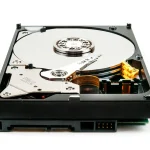
- Clicking or grinding from a desktop. That can be a failing hard drive, and every attempt to start it risks your files.
Are my files gone?
Usually not. When a computer won’t power on, the drive with your files is almost always fine. I can take it out and copy your files to a new drive or a new computer, even if the old machine isn’t worth fixing. If the drive itself is failing, that’s data recovery, and the less you run it before then, the better your odds.
Get it sorted
I serve Magnolia, The Woodlands, Conroe, Montgomery, Spring, Tomball, Woodforest, Lake Windcrest, and Westwood.
Nearby but not listed? Give me a call.
Call (346) 291-7330, or send me a message and I’ll get back to you within 24 hours.